
Automating Google Sheets with No-Code

I have seen many attempts to move from Google Sheets to a new app fail. The “standard” process usually goes like this:
Step 1: find a promising new app that looks better, feels more professional and offers more automation
Step 2: migrate the data, set up the new app, train employees to use it and pay the annual subscription
Step 3: discover that the new app meets only some needs, requires more actions (entering and editing data takes 7 × 7 = 49 steps), and has inflexible statistics and reports
Step 4: go back to Google Sheets or use both in parallel
So what is the solution?
In fact, besides choosing Google Sheets or another app, you have another option: add automation to Google Sheets. For example:
Automatically insert data from the file into emails to customers or colleagues
Automatically generate PDF files from the data in the file
Automatically summarize data and send daily reports
...
This helps you work more efficiently without major changes to your workflow or spending time learning a new app, while keeping all the benefits of Google Sheets.
Demo
Try these examples yourself by going here and following the instructions, or browse the screenshots below to see how they work:
Send emails from Google Sheets by entering Yes
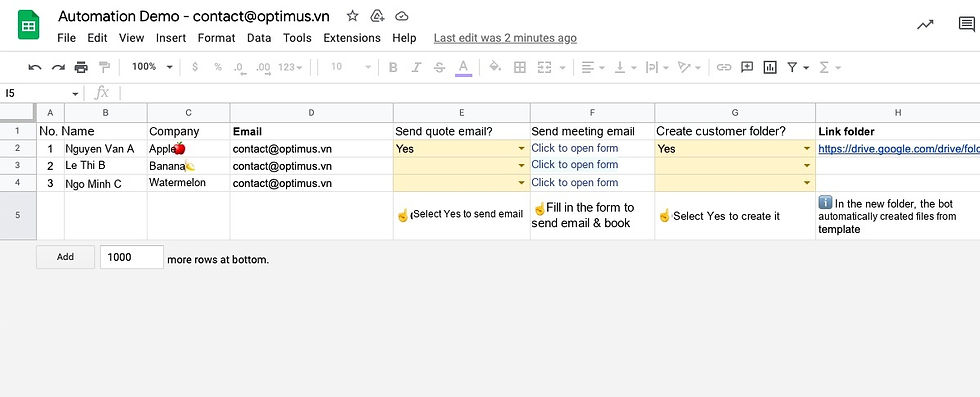
Add columns to the Google Sheets file so users can trigger automation. There are several ways to trigger it: entering a value in a cell, submitting a form, on a schedule...

Simply select Yes to trigger a template email that automatically inserts data from Google Sheets into its content. Emails can include layouts and images, not just text
Send emails from Google Sheets by filling in a form

Another way to trigger an email is through a form with fields prefilled from Google Sheets. You only enter the missing information

The email includes information from both Google Sheets and Google Forms
Create folders from Google Sheets

Enter Yes to create a folder. Its link is automatically entered in Google Sheets
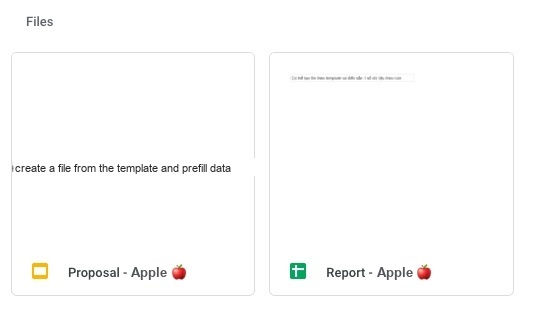
Inside the new folder, files can be created automatically from templates, with values and formulas prefilled according to your rules
Send Google Sheets reports automatically

From a data table in Google Sheets...
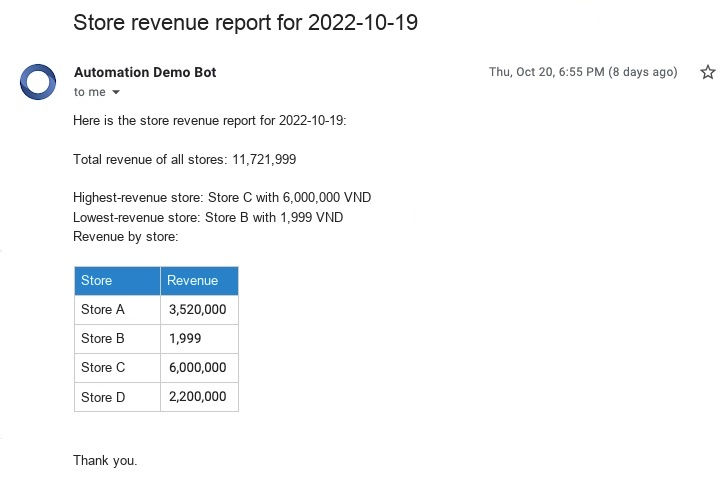
...you can automatically summarize data and send scheduled reports
Automatically generate PDF files from Google Sheets

Data in Google Sheets can be used to automatically generate PDF files and email them to customers

The PDF content comes from Google Sheets, and its layout can be customized to your needs
Google Sheets can be automated with Google Apps Script, Make.com, Zapier and more. The demos above were built with Make.com.
Conclusion
Adding automation to Google Sheets can be a more practical, effective choice than switching entirely to a new app.
For advice on and implementation of Google Sheets automation, contact Optimus at contact@optimus.vn.
Optimus specializes in process automation and optimization and digital marketing. Optimus is also an official Make.com Partner and a Zoho Partner in Vietnam.
If you want to set up Make.com yourself, use Optimus's sign-up link to get one month of the Core plan free, with 10,000 operations included.
Comments