
Automatically Send Emails from Google Sheets
Summary
💪 Do it yourself: Automatically send emails from Google Sheets with a low-code/no-code approach
Create a free Make account here (2 minutes)
Make a copy of the sample Google Sheets file (30 seconds)
Download the JSON file and import it into Make (10 seconds)
Set up the connection and modules (5 minutes)
Click the Send email button to trigger the command (5 seconds)
👀 Try more Google Sheets automation features here
If you search for "automatically send emails from Google Sheets" on Google Search, most results will show you how to do it with Apps Script. However, this is not the best method for people without programming knowledge.
In the guide below, Optimus will show you how to build an effective automatic email-sending feature from Google Sheets with little code. Anyone can do it.
Steps
Preparation
Step 1: Make a copy of the sample Google Sheets data file
Open the sample Google Sheets file and select File > Make a copy.

Step 2: Create a Make account (skip if you already have one)
You can create a free account here. In particular, Optimus's sign-up link gives you 1 month of the Core plan free with 10,000 operations, without entering a credit card
Step 3: Create a new scenario and import the sample scenario file
In the Make dashboard, select Create a new scenario in the top right

Select the three-dot icon, then select Import blueprint and choose the sample scenario file you downloaded earlier

After uploading the blueprint file, you will see the following screen
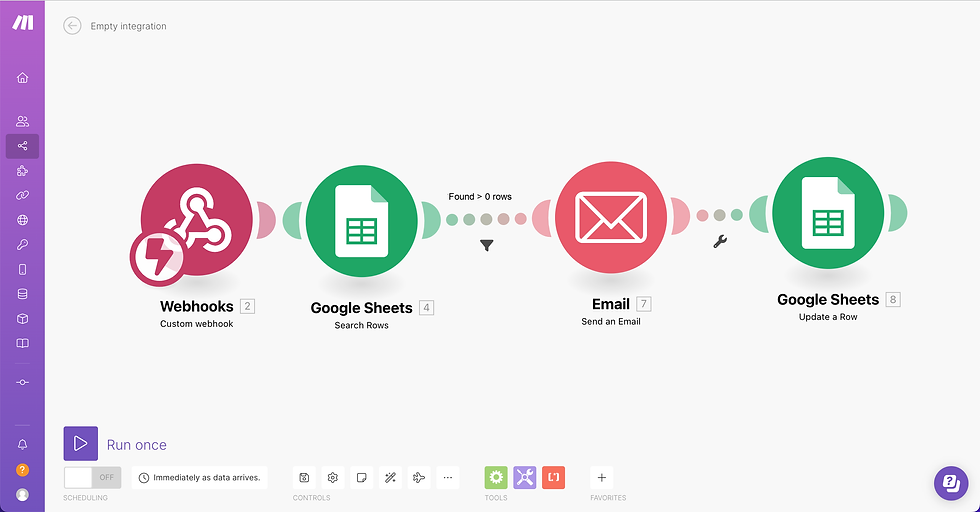
Step 4: Set up the modules
Webhooks - Custom webhook module
Select the Webhooks - Custom webhook module Select Add, enter a webhook name (you can use the name in the image), then select Save

The system will then create a new webhook address. Select Copy address to clipboard

Return to the sample Google Sheets data file you copied and select Extensions > Apps Script

Replace the URL highlighted in blue in the image with the webhook address you just copied above

Then click the Save project button

Google Sheets module
Return to the scenario editor and select the Google Sheets module. Under Connection, select Add

Under Connection name, use the email address you are connecting so it is easy to identify, then select Sign in with Google A new window will appear. Sign in with your Google account, then select Allow

Once connected, select the spreadsheet file you copied

The other fields are already configured for you. Select OK and move on to the next module


Gmail - Send an email module
Under Connection, follow the same steps as for Connection in the Google Sheets module. Sign in and allow Make to send emails

Once the Connection has been created successfully, the other fields are already configured. You can edit the email content as you wish, then select OK
Google Sheets - Update a row module
Under Connection, select the connection you created earlier in the Google Sheets module The other fields are already configured as shown below
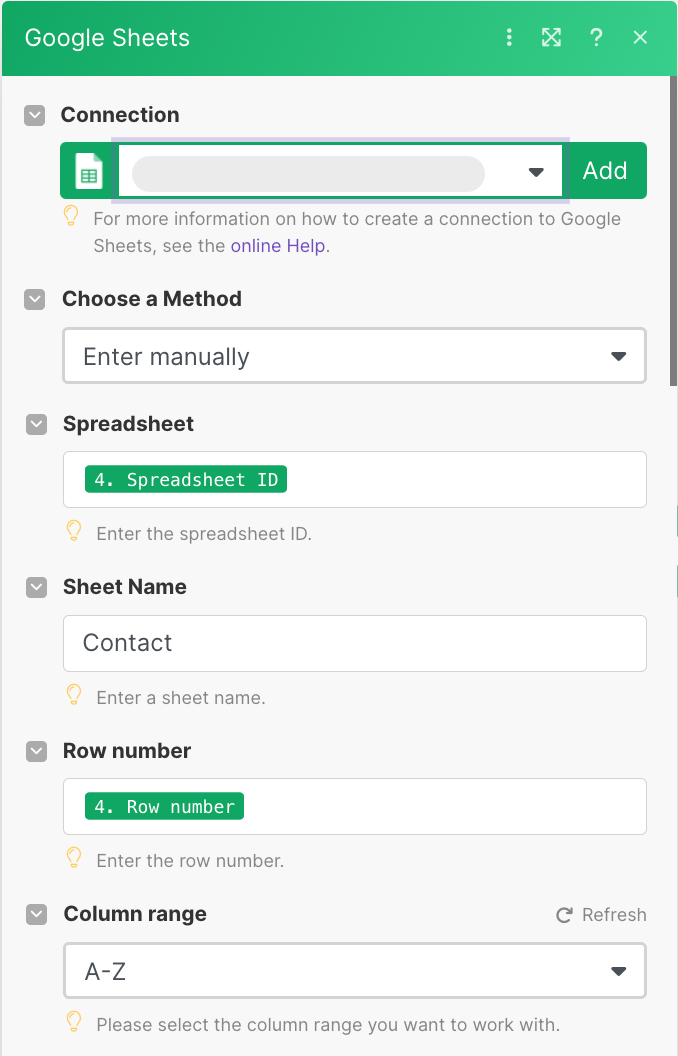

That completes the scenario setup. Select Save scenario, then select Run Once
Step 5: Send emails from Google Sheets
In the Google Sheets file, enter data in the Customer name and Email cells
Click the Send email button

Note: The first time you click the button, Google will ask you to sign in and grant permission for the file to call external addresses, specifically the webhook address you created. The authorization steps are similar to creating a Connection in Make
After granting permission, click the button again. If you see the Running Script box, the command is running
Wait about 5 seconds for the bot to send the email to the specified address and update the sending time


Since we set the scenario to run only once (Run Once) at the end of step 4, open the Scenario and turn on Scheduling so the command runs automatically each time you click the Send email button afterward
Applications
You can integrate this feature into your business operations, for example:
Automatically send welcome emails when customers leave their contact details through a form
Automatically send emails assigning tasks to the team that contacts customers,
Send order status update emails...
In particular, the email content is written in HTML, so you can freely design professional emails to your
liking or from existing templates.
This is also a feature Optimus uses extensively in internal workflows such as Automating accounts receivable or Automating recruitment
Besides sending emails, you can automate many other functions with Google Sheets, such as creating files or folders and exporting PDF files 👉 try them completely free here.
Conclusion
We have now gone through the steps to create a system for automatically sending emails from Google Sheets. I hope you can apply this useful feature to your own workflow.
If you have difficulties and need help implementing automation, do not hesitate to contact Optimus using the form below. Optimus will provide free advice and help you successfully build the best automation workflow!
Comments